
FileMaker data migration: how to move without losing anything
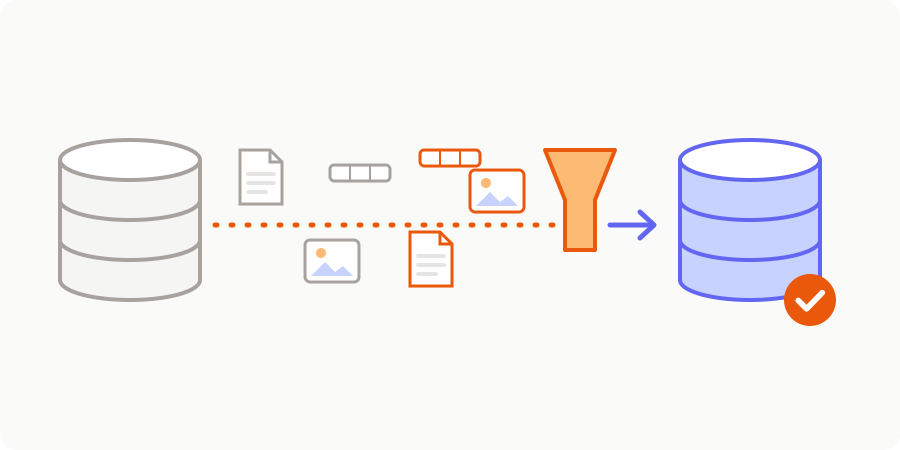
In any FileMaker migration project, one concern comes up more than any other: "What about our data?" Fifteen years of customers, orders, invoices, scanned documents and notes typed in along the way. Losing part of that history, or discovering three months after go-live that some amounts no longer add up, is a risk nobody wants to take.
The good news is that data migration is a very manageable operation, as long as you treat it as a workstream in its own right rather than a last-minute formality. Here is how we go about it, step by step, along with the points that are specific to FileMaker.
In short
- Data is moved by an automated migration program, rehearsed several times before go-live.
- The tricky FileMaker-specific points: container fields, calculation and global fields, repeating fields, keys and relationships, dates.
- Every run is verified: record counts, totals, and samples checked by your team.
- On the day, data entry is frozen, a final, well-rehearsed migration is run, and everything is checked.
1. Take inventory
Everything starts with an accurate map of what exists: every table, every field, its type, its volume and, above all, how it is actually used. In a database that has been around for a while, you always find forgotten import tables, fields called "Notes2" or "Old_status" that have not been used in years, and separate FileMaker files linked together.
This inventory, carried out during the audit, lets us decide what to do with each item: migrate it as is, transform it, archive it or drop it. AI helps us analyse the structure and spot empty or unused fields, but the decisions are made with you.
2. Extract the data
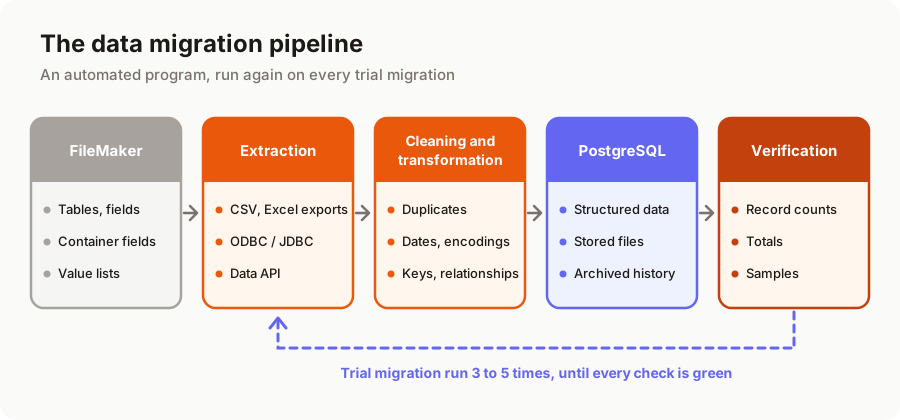
There are several ways to get data out of a FileMaker database, and we often combine them:
- FileMaker exports (CSV, tab-separated, Excel, XML): simple, available everywhere, well suited to reasonably sized tables. Watch out for the character set chosen at export time and for date formats, which depend on the computer's settings.
- ODBC/JDBC: a database hosted on FileMaker Server or FileMaker Cloud can be queried in SQL by an external program, provided the relevant privilege is enabled and the driver installed. It is the most practical route for extracting large volumes in a repeatable way.
- The FileMaker Data API: a REST API that returns records as JSON and provides download links for files stored in container fields. It is very handy for automation, bearing in mind the data transfer limits included in your Claris licence. Recent versions also offer an OData API.
The right choice depends on your version, your hosting and your data volumes. In every case, we work on a copy of the database: your production application is never modified.
3. Handle FileMaker's peculiarities
This is where the quality of a data migration is decided. FileMaker has concepts with no direct equivalent in a standard relational database.
Calculation fields. An unstored calculation field is not data: it is a formula. We do not migrate it, we rewrite it in the application, then check that it produces the same result as before across thousands of records. Stored calculations and summary fields (totals, averages) are handled the same way: we sometimes migrate the value for comparison, but the rule itself is recoded.
Global fields. They do not hold business data: their value is shared and specific to each session. They are often used to remember a filter or a setting. We identify their role, and they either become application settings or disappear.
Repeating fields. A legacy of older versions, they store several values in a single field (five price lines, for example). We split them into rows in a dedicated table, which finally makes that data searchable.
Relationships and keys. FileMaker relationships sometimes rely on fragile keys: a customer name, a hand-typed number, a key built by a calculation. We create reliable technical identifiers, keep the old numbers for traceability, and check that every order is still attached to the right customer. Orphan records are listed and dealt with one by one, with you.
Value lists. Statuses, categories, payment methods: these lists become reference tables. It is the moment to merge "Delivered", "delivered" and "DELIVERED" into a single value.
4. Migrate container fields
Container fields store PDFs, photos, drawings and signed documents. They can account for most of the database's volume. Depending on the setup, files are embedded in the FileMaker file or stored externally and managed by FileMaker.
We extract every file with its original name, attach it to the right record and place it in suitable file storage (object storage hosted in Europe), with the PostgreSQL database keeping only the reference. We then check the number of files and their total size, and open a sample to make sure none is corrupted.
5. Clean up without betraying history
A migration is the perfect opportunity for a clean-up, but cleaning must remain traceable:
- Duplicates: duplicate customer records, contacts entered twice. We detect them automatically and suggest merges, which you approve.
- Formats: dates typed as text, phone numbers in every format, amounts with stray spaces. Everything is normalised, and values that cannot be interpreted are listed rather than guessed.
- Encodings: accents mangled by old imports, special characters. Everything moves to UTF-8, and suspicious text is flagged.
- Dates and times: FileMaker stores dates without a time zone and displays them according to the computer's settings; we set a clear convention and check edge cases (29 February, daylight saving changes, empty or zero dates).
- History: nothing is deleted by default. Very old data can be archived in a separate, searchable table rather than mixed with active data.
6. Rehearse: trial migrations
The secret of a calm go-live is rehearsal. The migration program is run end to end on a fresh copy of your database several times during the project: often three to five trial migrations. Each run uncovers a few edge cases, which we fix in the program, never by hand in the data.
These trial migrations also feed the testing environment: your users try the new application on their own records, which makes it possible to spot badly migrated data very early. We explain where testing fits in the overall project in the 6 steps of a successful FileMaker migration.
7. Verify, with figures
"It looks fine" is not enough. On every run, automated checks compare source and target, and a report is produced.
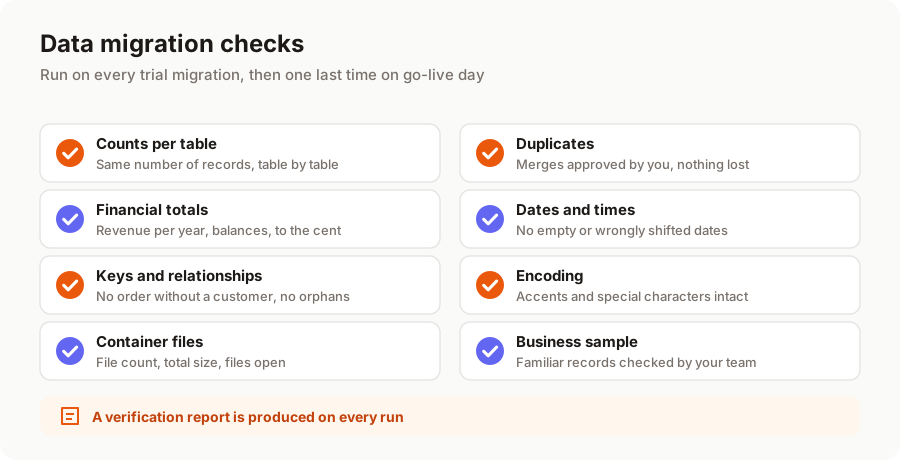
For a business owner, the most convincing check is often the simplest: revenue invoiced per year, the number of active customers, the balance of unpaid invoices. When those totals match to the cent in FileMaker and in the new application, confidence builds quickly.
8. Go-live day: freeze and final migration
On the day of the switchover, all that remains is to follow a procedure that has already been rehearsed:
- announce the timing to your teams a few days in advance;
- freeze data entry in FileMaker (switch to read-only);
- extract from the up-to-date database and run the final migration;
- run the automated checks and have someone from your team verify a sample;
- open the new application.
For a business application, the final migration usually takes from a few dozen minutes to a few hours, depending on the volume of container files. FileMaker remains available in read-only mode for a few weeks: if in doubt, you can always compare.
How long, and what budget?
Data migration typically accounts for around 15% of a migration budget, more if the database is old, very large or loosely structured. For a business application, expect one to three weeks of work, spread across the development phase. The full ranges are detailed in how much does a FileMaker to web migration cost.
In short
Migrating FileMaker data without losing anything comes down to a simple method: an accurate inventory, an extraction method suited to your setup, careful handling of FileMaker's peculiarities (containers, calculations, globals, repeating fields, keys), traceable clean-up, repeated trial migrations and figures checked on every run. Go-live day is then just one more rehearsal.
Wondering what shape your database's data is in? Our free audit of your FileMaker application includes an initial analysis of its structure and volumes. Explore our FileMaker migration service or tell us about your project.
A migration or business app project in mind?
Tell us about your context: we reply within 48 hours with a first recommendation, no strings attached.
Discuss your project